

Files in a space
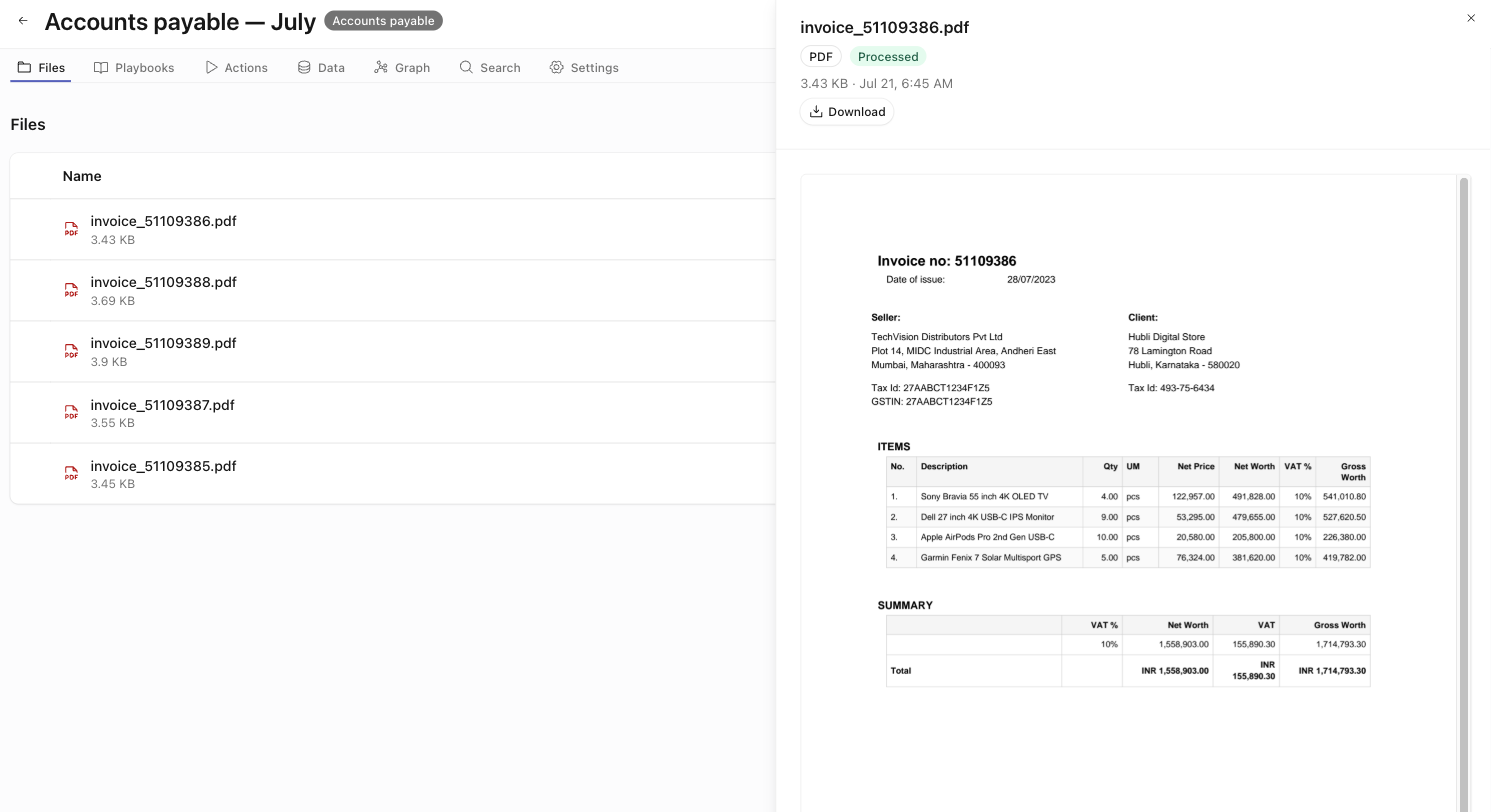
The Files tab is the space’s file pool. It is one flat table with no folders and no tags. It holds every file you upload. It also holds the files that runs and actions generate.
Uploading files
Add files in two ways:
- Click Upload files and select the files.
- Drag and drop files onto the panel. An overlay appears — “Drop files to upload” / “Release to add them to this space.”
A placeholder row shows while an upload is in progress.
The table
Each file shows as a row with these columns:
Use the Search by file name box to filter the list. Select one or more files to show a bulk toolbar. The toolbar has Run action, Download, Delete, and Clear. Run action starts a single-action run on the selected files. See Run an action.
Processing states
After upload, each file moves through processing. A status badge shows the state:
Uploading → Stored → Processing → Processed
A file that cannot be processed shows Failed. Download stays disabled while a file is Uploading.
Processing indexes each file for the Search tab. For documents, processing also builds the space’s Graph. There is no per-file toggle. See Search and the knowledge graph.
The file detail drawer
Click a file name to open its drawer. The drawer shows the filename, a type badge, a status badge, the size and date, and a Download button. The preview depends on the file type:
PDFs
PDFs show inline in an embedded viewer.
Images
Images show inline.
Audio
Audio files get a player with a synced transcript. The transcript highlights the segment under the playhead and scrolls to it. Click a segment to move the player to it. Speakers show as Speaker N with mm:ss timecodes.
Other file types
“Preview isn’t available for this file type. Download the file to review it.”
If a file shows Failed, the drawer shows “Processing failed” and a Try processing again button. Click the button to retry.
For programmatic access to files and their parsed output, see the Developers tab.