

Record types
A record type defines the shape of a record. It sets the fields each record carries, the type of each field, and the title field. You define record types once at the organization level. All spaces reuse them.
Record types are org-level. Admins manage them under Data objects. A space’s Data tab is read-only for definitions. The tab shows a Manage record types button that brings you here. Members create records against these types inside a space. Members do not change the types.
Create a record type
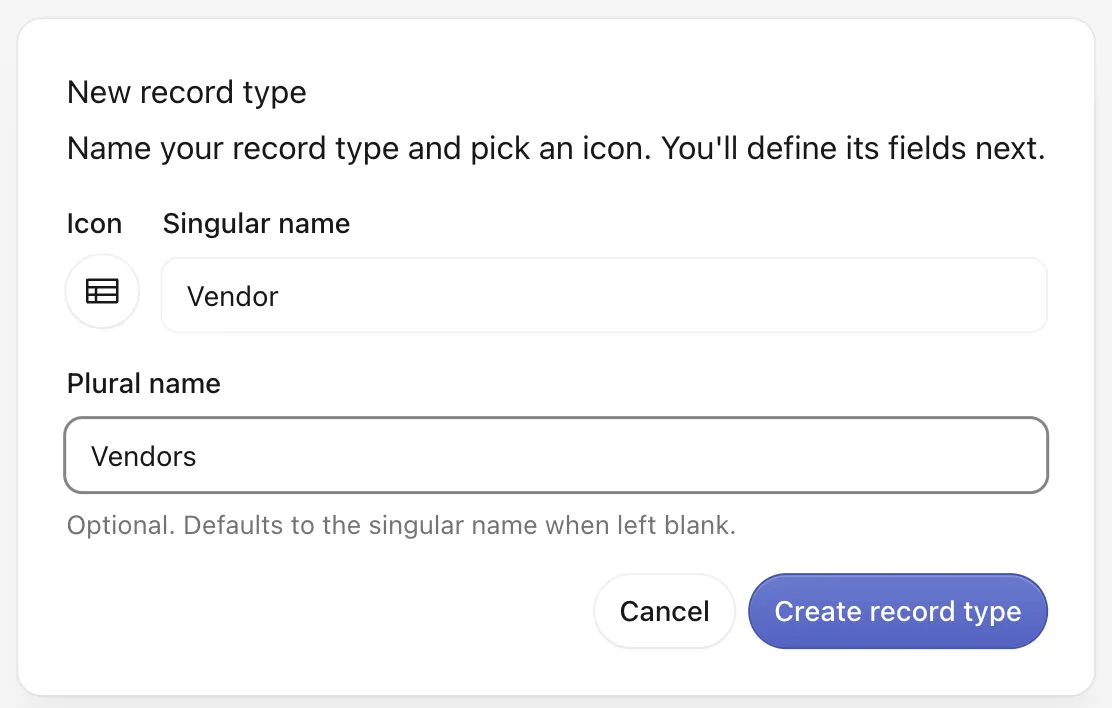
Open the New record type dialog
From Data objects, start a new type. The New record type dialog opens: “Name your record type and pick an icon. You’ll define its fields next.”
If a record type with the same name exists, a banner shows an advisory. The banner is a warning only. You can still create the new type.
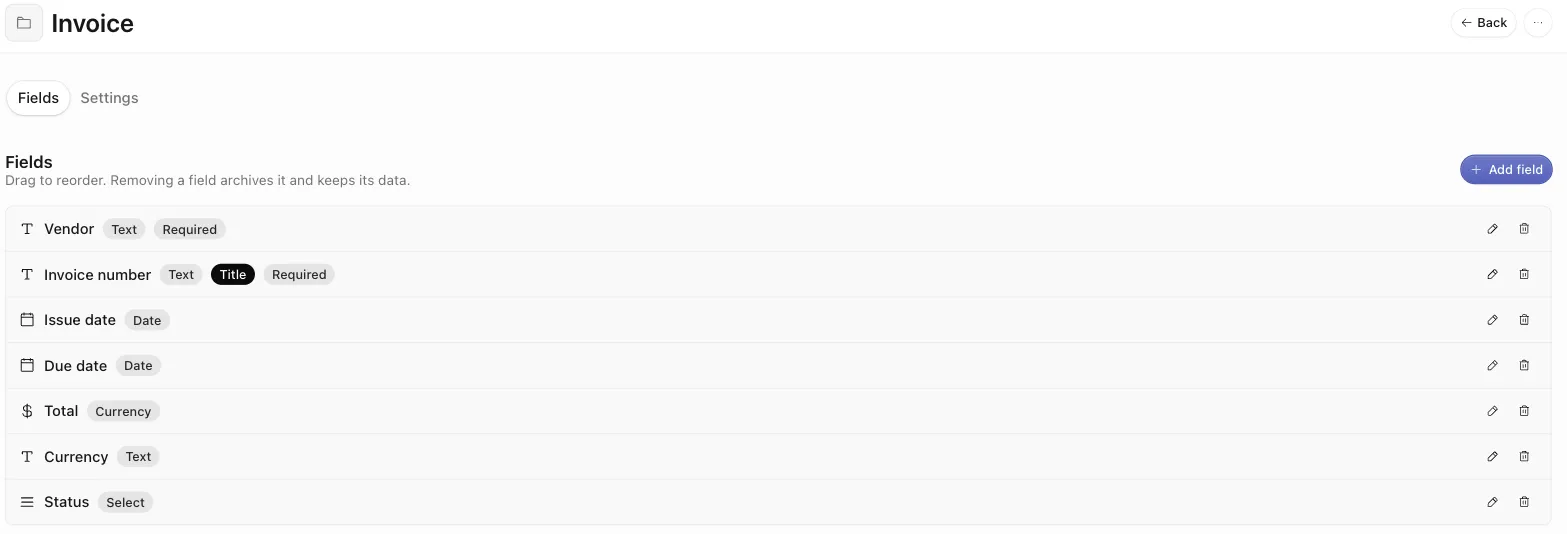
Fields tab
The Fields tab lists the type’s fields in order: “Drag to reorder. Removing a field archives it and keeps its data.” Each row can carry badges: Title, Required, and Unique.
When you remove a field, the app archives it and keeps its data. This is not a hard delete. The data stays on existing records.
Add or edit a field
Open the field form to configure:
- Label — the name shown on forms and columns.
- Key — “A stable machine identifier. It can’t change after creation.” Exports, integrations, and the API use it.
- Help text — optional guidance shown with the field.
- Group — the section that holds the field on the record form.
- Required / Unique — toggles.
- Type — the field type. The type is fixed after creation. You cannot change it later.
- Default value — optional. It pre-fills the field on new records. Date and date-and-time fields also offer Now, Today, or a specific date.
Field types
A record type field is one of 13 types:
Select and Multi-select carry an Options editor. Add the allowed values there. Each value gets one of 10 tag colors: Gray, Green, Turquoise, Sky, Blue, Purple, Pink, Red, Orange, Yellow.
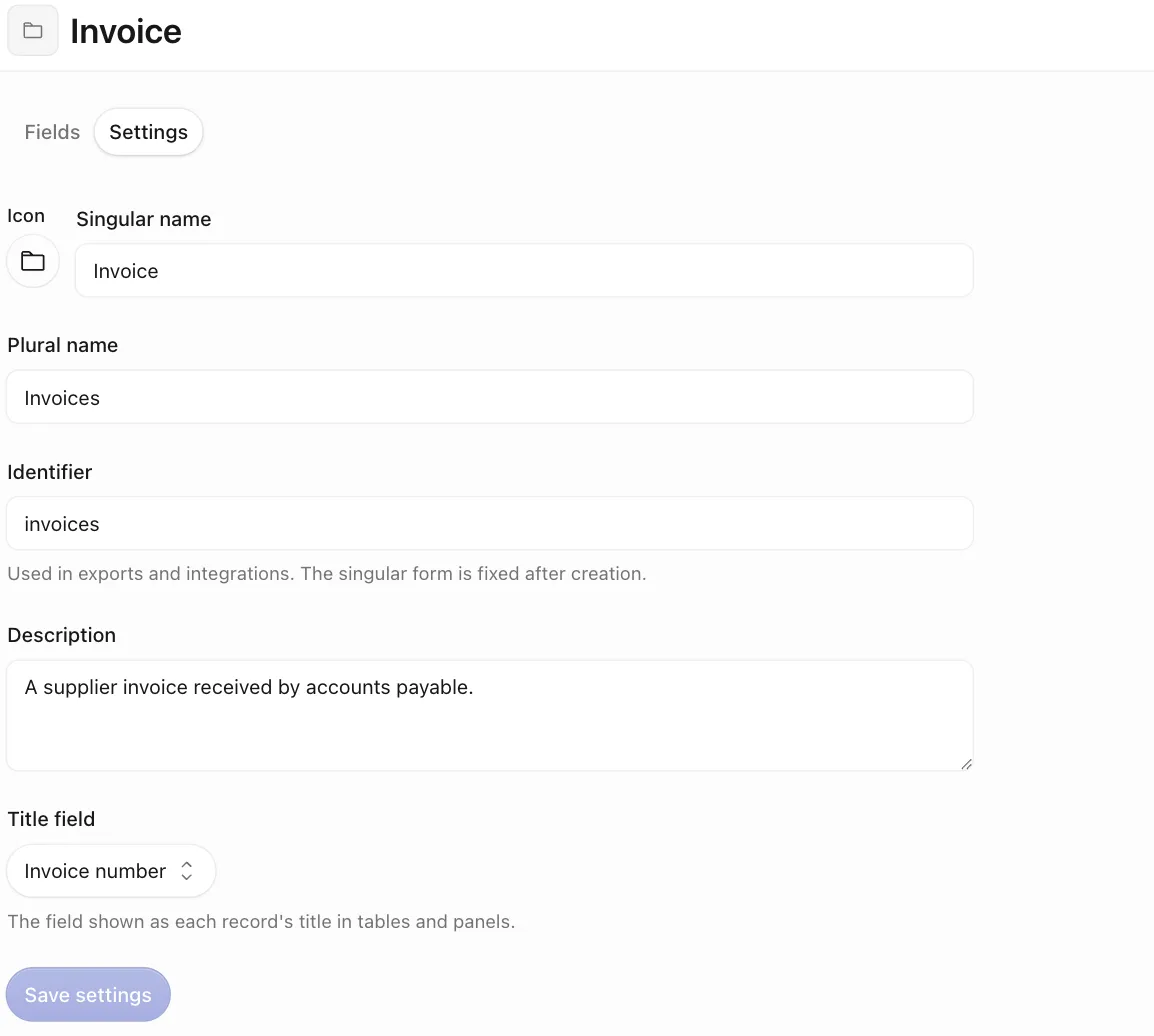
Settings tab
The Settings tab holds the type-level configuration:
- Icon and Singular name / Plural name.
- Identifier — used in exports and integrations. It is fixed after creation.
- Description — what this record type represents.
- Title field — “The field shown as each record’s title in tables and panels.” This field is pinned to the left of the records table.
Using a record type
After you create a type, members create records against it inside a space’s Data tab. You can configure extraction actions to output into the type. When you approve an extraction’s results, the app imports them as records of that type. For programmatic access to record types and records, see the Developers tab.