

Organization settings
Your organization is one whole CloudRaker workspace. It holds your people, spaces, data, and the building blocks behind them. One organization is one tenant. All content you see is scoped to your current organization. This page covers two organization-level tasks in the app shell. You can set your organization’s logo, and you can switch between organizations if you belong to more than one.
Organization settings is admin-only. The Admin group in the sidebar — Settings, Users, and API keys — appears only if you have the admin role. Non-admins do not see the Admin or Build groups. If you open a settings page without the admin role, you see “You need the admin role to manage organization settings.”
Set your organization’s logo
The logo identifies your organization in the organization switcher. It is the only setting on the Organization settings page. The page description reads “Manage settings for your organization.”
To get there, click Settings under the Admin group in the sidebar.
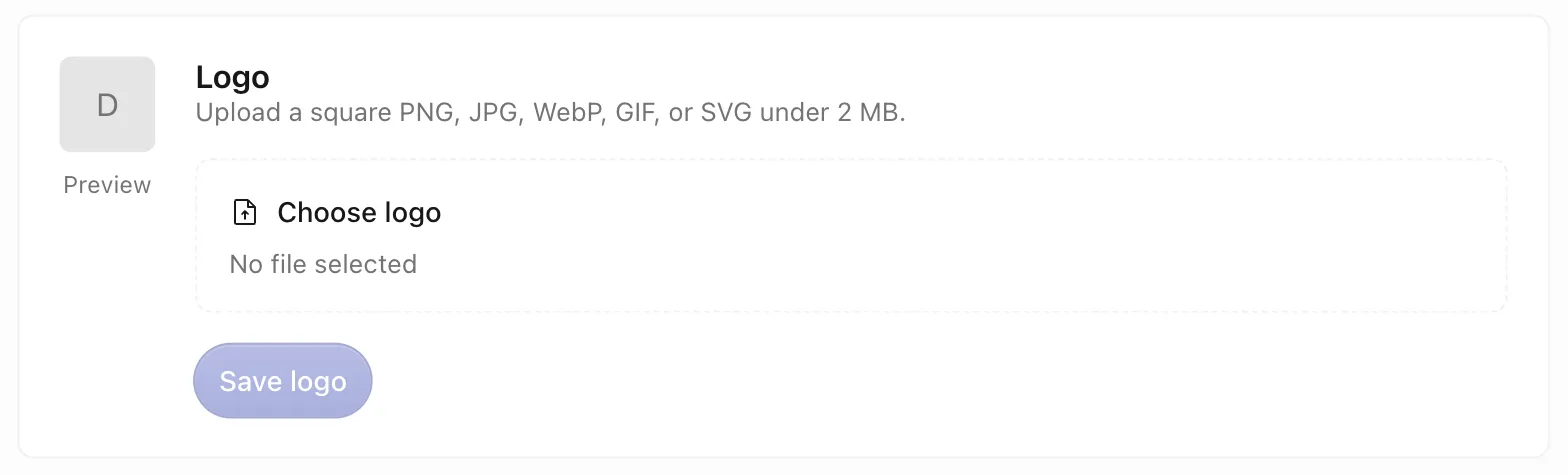
Pick a square image and keep it under 2 MB. If the file has a problem, you see a specific message: “That image is too large. Upload a file under 2 MB.”, “That file type isn’t supported. Use PNG, JPG, WebP, GIF, or SVG.”, or “That image isn’t valid. Try a different file.”
Switch between organizations
If your account belongs to more than one organization, use the organization switcher at the top of the sidebar. It shows the current organization’s logo and name. Open it to list each organization you belong to under an Organizations header.
An organization switch fully reloads the app and re-scopes all content. Spaces, data, and your roles change to the organization you picked. Finish or save your work before you switch.
If your account belongs to only one organization, the switcher shows that organization and nothing to switch to.