

Language and developer mode
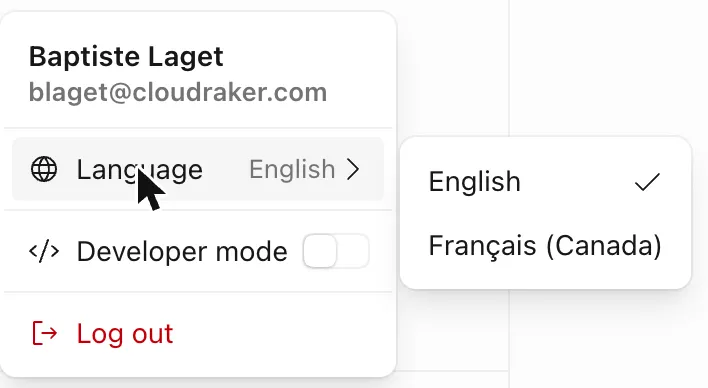
Two settings in CloudRaker are yours, not your organization’s: the interface language and developer mode. Both live in the profile menu. Click your avatar at the bottom of the sidebar to open it. Both settings are saved to your user preferences. They follow you across sessions and devices.
These are personal preferences, not admin settings. Every user has them, regardless of role. They change only what you see.
Language
CloudRaker ships in two languages: English and Français (Canada). English is the default.
Developer mode
Developer mode is off by default. When it is on, CloudRaker shows technical metadata that is normally hidden. This includes raw IDs, slugs, configuration JSON, the JSON config editor, and run plumbing on actions, files, runs, and data.
To turn it on, open your profile menu and turn on the Developer mode switch.
Developer mode does not change your permissions or what you can do. It only shows more detail.
Developer mode shows the IDs and raw configuration that you pass to the API. See the Developers tab.