

Extract data from documents
A Document understanding action performs structured extraction. It reads each source document and pulls out structured fields. Turn on grounding in the action’s configuration to get a source citation with every field. A citation links to the exact page and text, or to the point in an audio transcript. You can trace every value back to its source.
Grounding is off by default. Enable it on the saved action. When grounding is on, every filled field carries at least one citation or is marked not found. A not-found field stays empty. The system does not guess a value.
In the action’s configuration, set whether the extraction binds to a record type (“Data object”) or stays as Schema only. To launch a run, see Run an action.
The results grid
When an extraction run finishes, the run page shows a “Results” grid. The grid has one row per extracted result. The output fields are columns, and a “Source” column is frozen on the left. The header summarizes the run, for example “{n} extracted results” or “{n} extracted results · {n} failed.”
Each row carries a status badge:
Cells show a confidence score. On grounded runs, cells also show a citation-count chip.
The toolbar above the grid has these controls:
- “Export CSV” — download every result.
- “Approve all clean (
{n})” — approves the results that still need review and have no warnings. - “Approve selected (
{n})” — select rows first, then approve only those. - “Retry failed (
{n})” — re-run the documents that failed. - “Clear” — clear the current selection.

The review workspace
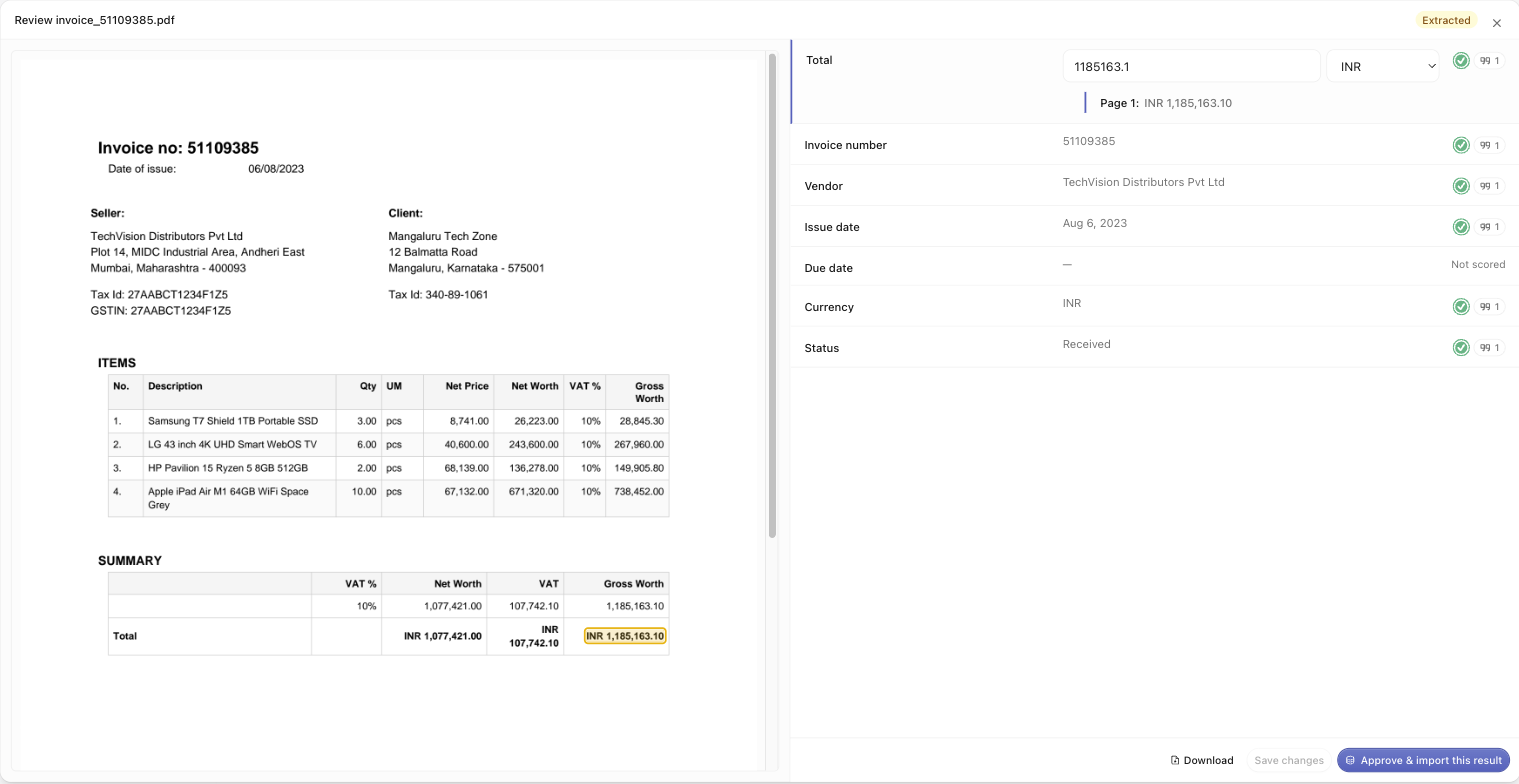
Click a row to open the full-screen review workspace. The source document sits on the left with the selected citation shown in context. The citation appears as a highlighted bounding box on the PDF page, or as the audio transcript at the cited moment. The fields sit on the right. Each field lists its citations (“Page {n}”, “Transcript”, or “Source”), a confidence score, and any warnings. A field shows a not found marker when the value is not in the document.
To correct a value, edit it inline and click “Save changes.”
An edit removes the value’s evidence: “Saving replaces the extracted value and removes its source citation.” Edit a value only after you verify it against the source.
Every run has an editable window. After the window closes, the grid shows “Editing is closed for this run. Results stay available.” You can still read and export results. You cannot change them.
When a result is correct, click “Approve & import this result” in the review workspace. You can also approve in bulk from the grid.
Importing into Data
When you approve results, they become records in the space’s Data tab. An import banner (“Add to data”) guides you through the import. It previews the results and offers “Add {n} results to data”. A “View in data” link appears after the import.
If the run was not bound to a record type (“Schema only”), a “Record type” picker appears first. Choose the type to import into. The import ignores extracted fields that are not part of that record type.
Reviewing inside a playbook
The AI assistant can run an extraction as a step in a playbook. The same review then occurs through a post-action “Output review” card on the playbook run. A “Review” button opens the extraction review surface full-screen. Saves there only save your table edits. When you are done, click “Approve & resume agent”. Approval adds the extracted records to Data with every field marked approved. The agent then continues. See Approvals and steering.