Build a playbook
A playbook is built in a no-code editor: you add tasks, decide which task waits for which, set who owns and approves each one, and publish when it’s ready. This page covers the editor mechanics. For what a playbook is and its lifecycle, see Playbooks overview.
Building a playbook needs the Builder (or Admin) role. Without it, the Playbooks library shows “You don’t have access to playbooks. Ask an admin if you need it.” and no New playbook button. See Roles and permissions.
Create a playbook
Playbooks live in the Building Blocks group in the sidebar, under Playbooks. The page header reads “Reusable processes that any project can run.”
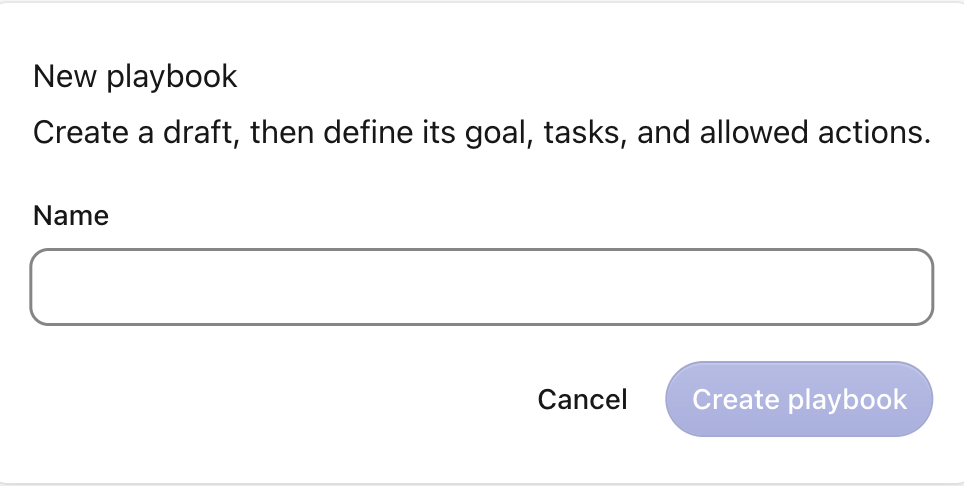
Start a new playbook
Click New playbook in the top-right. On an empty library the button reads Create your first playbook.
Fill in the details
In the New playbook dialog, complete:
- Name (required) — the human-readable name, e.g. “Approval process”.
- Identifier — a short machine name, auto-filled from the name (e.g.
approvalProcess). You can override it. This is for the system; people always see the Name. - Run number prefix (2-6 letters or numbers) — auto-filled from the name’s initials, e.g. “OPS”. If it’s invalid you’ll see “Use 2-6 uppercase letters or numbers.”
- Description — an optional short summary.
The editor at a glance
The editor header shows the playbook name, a version chip (v1), and the status badge (Draft / Published / Archived). On the right are two buttons: Validate and Activate.
Below the header are three tabs:
- Tasks — assemble the steps and their order.
- Settings — numbering, how runs start, and Florent’s behaviour.
- Versions — the current version and who last saved it.
Build the task flow
The Tasks tab has two areas:
- Task flow — a visual map at the top showing each step and what it waits for. It labels tasks with “Starts with” / “After stage N” and “Waits for” the named tasks, or “Ready when the run starts”.
- Task details — a list below, one row per task in display order. Each row shows the position, a colored type badge, the task name, its group label, an assignment summary, an Approval chip when sign-off is required, and a “Waits for” chip naming each upstream task it depends on.
Add a task
Click Add task and pick a type from the menu:
- Form — a person fills in fields.
- File upload — a person provides documents.
- Document — Florent reads files and drafts records.
- Action — runs a packaged automation.
- AI task — Florent does open-ended work.
Picking a type creates a working default task named for that type (for example “New form”) and opens its setup so you can configure it. For what each type does, who runs it, and when to pick which, see Task types.
Set the order
Each task row has up and down buttons to move it in the list.
Reordering only changes the display order. It does not change when a task actually runs. What controls execution order is each task’s dependencies — see below.
Set what waits for what
Execution order comes from dependencies, not list position. Open a task and use the Dependencies section (labeled Starts after) to pick the tasks that must finish first.
- “The task becomes available after every selected task completes.”
- A task that waits on nothing reads “This task is ready as soon as the playbook run starts.”
- You can’t create a loop. The picker blocks a task from waiting on itself or on a task that already runs after it (“A task cannot wait on itself or on tasks that depend on it.”).
Use dependencies to model real branches and merges. A task with two “Starts after” entries waits for both to finish before it becomes Available.
The Task setup sheet
Click a task row (or its edit pencil) to slide out the Task setup sheet. It has five sections:
Basics
- Name — the task name shown everywhere.
- Group — an optional label that visually clusters related tasks, e.g. “Phase 1: Review”.
- Description — instructions shown to the person or to Florent who does the task.
Timing
- Expected duration — used for planning and visibility only; it does not block the run.
- Due after the run starts — a relative due date. The task shows as Overdue once it passes.
Dependencies
The Starts after picker described above — choose which upstream tasks must finish first.
People
Who owns the task and who approves it. You choose an assignment strategy (a specific person, a role, the run starter, any project member, Florent, and more) and toggle Requires approval to add an approver (“When enabled, this task parks for review before its output is committed”).
This page only shows where these controls live. For how assignment and approval actually work — first-to-claim, who the approver can be, and when approval is forced — see Assignments and approvals.
Configuration
The task-type-specific setup — the fields a Form collects, the upload fields, the record type a Document task extracts into, the action an Action task runs, the prompt for an AI task. Each is covered in Task types.
The sheet’s buttons are Save task and Delete task. Deleting asks you to confirm (“Delete this task and its dependency links?”) because it also removes the links other tasks have to it.
Some tasks force approval on. A Document, Action, or AI task that writes records can’t be published without Requires approval turned on — that gate is what lets the drafted records become real data. Assignments and approvals explains why.
Settings
The Settings tab holds cards that apply to the whole playbook. Each card has its own Save button that lights up only when that card has unsaved changes.
Numbering
Controls how each run is numbered. Set a Prefix (e.g. “PT”), a Pattern (Auto-number, Date + auto-number, Year + auto-number, or Date), a Date format for date patterns, and a Separator. A live preview shows the result, e.g. “Runs will be numbered PT-001, PT-002, …”.
Starting runs
Two switches decide how runs begin:
- People can start this playbook — lets project members click Run.
- Start from a webhook — lets another system start a run automatically, “for example when an email arrives.”
Webhook starts are covered in Triggers.
Florent
These switches control Florent’s behaviour on every run of this playbook:
- Enable Florent — “Florent watches the run and posts guidance in the conversation.”
- Enable Florent chat — “People in the run can ask Florent questions directly.”
When Florent is enabled, three auto-run switches appear: Run actions automatically, Run document tasks automatically, and Run AI tasks automatically. These let Florent kick off automated steps on its own instead of waiting for a person to start them.
If you want Document, Action, or AI tasks to run by themselves, you must enable Florent and turn on the matching “Run … automatically” switch. Otherwise someone has to start each automated step by hand. Approvals are never auto-skipped — a human still signs off.
Versions
The Versions tab shows a single Current version card: the version number, when it was last saved and by whom, and a reminder that publishing increases the version while active runs keep theirs. Each time you publish changes, the version number goes up; runs already in flight finish on the version they started with, so editing a definition never disturbs them.
Validate and publish
A playbook must be Published before any project can run it — a Draft shows no Run button.
Check it
Click Validate to check the playbook without publishing. If it’s clean, a green banner reads “This playbook is valid”.
Once a run has started against a playbook, its Identifier is locked, and edits to a project-attached playbook are blocked while a non-draft run references it. Plan the identifier before you publish.
Where to go next
Configure each of the five task types: what they do, who runs them, and what they produce.
Decide who owns each task and who signs off before its output counts.
Start runs automatically from a webhook instead of a person clicking Run.
Publish, then start a run in a project and work through its tasks.
Tasks can point at building blocks you set up elsewhere: a record type for the data a Form or Document task captures, or an action for an Action task. Create those first so they’re available in the task’s Configuration.