

Spaces overview
A space is your main workspace. It holds the files you upload and the playbooks and actions you run on them. It also holds the data those runs produce, plus the knowledge graph and search index built from your documents.
Every space starts from a space type. A space type is a reusable template. It controls which playbooks can run in the space and how the platform builds the knowledge graph. See Create a space and Space types.
The Spaces list
Open Spaces from the sidebar to see every space you can access. The list title is Spaces with the subtitle “Workspaces created from a space type.” Each row shows three columns:
The sidebar groups your spaces under collapsible space-type headers. Spaces of the same type show together.
If you have no spaces, the list shows No spaces yet — “Create a space from one of your space types to get started.”
Inside a space
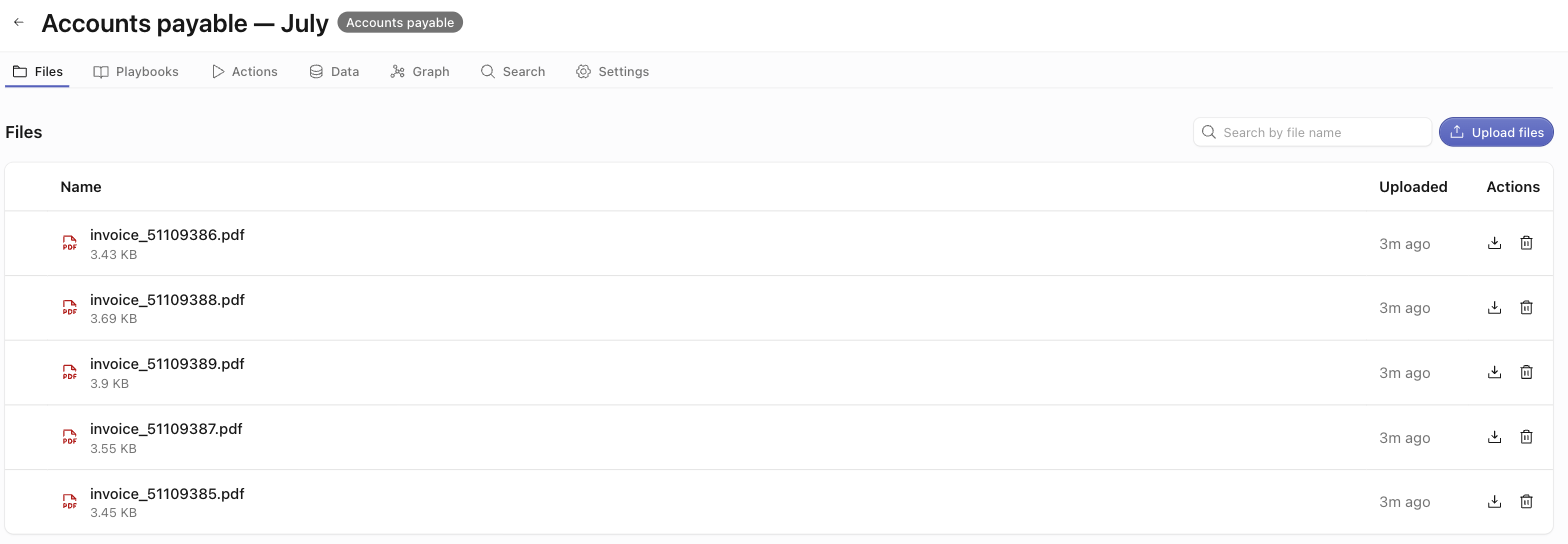
A space opens to a tab bar. Each tab is its own area:
The Playbooks tab and the Actions tab are different. Playbooks lists agentic runs, where the AI assistant works through a multi-step goal. Actions lists single-action runs, where you run one action on selected files.
Members and roles
Open Settings → Members to control direct access to this space. The panel reads “Edit direct roles for this space. Inherited access from the space type is not changed here.” Grants made here do not change access inherited from the space type.
To add a person, click Add member and select them from the people picker. New members start as viewers. Change their role after you add them. Each member has a role dropdown:
Roles are cumulative. Each level includes all levels below it.
The platform’s authorization service enforces access, not the screen. If you do not have an admin or management role, admin-only surfaces do not appear.
Archiving a space
The bottom of Settings has Archive space: “Archived spaces are hidden from the workspace. Existing files and data stay stored.” Archiving asks for confirmation (“Archive this space?”). It then removes the space from the spaces list. Nothing is deleted. The files, data, and runs stay stored.