

Run an action
After you install and configure an action (see Actions and the library), run it over the files in a space. A run reads the files you pick and does the action’s one job. Results appear on a run page as they come in.
For structured extraction, see Extract data. For filling and signing, see Document generation.
Where runs start
Every standalone run lives in a space’s Actions tab. Open a space and select Actions. The tab lists “Every action run in this space.” and has a “Run action” button. If no runs exist, you see “No runs yet” / “Run an action over this space’s files to see results here.”
You can also launch a run from the Files tab. Select one or more files. The bulk toolbar’s “Run action” button starts a run over those files.
The launcher
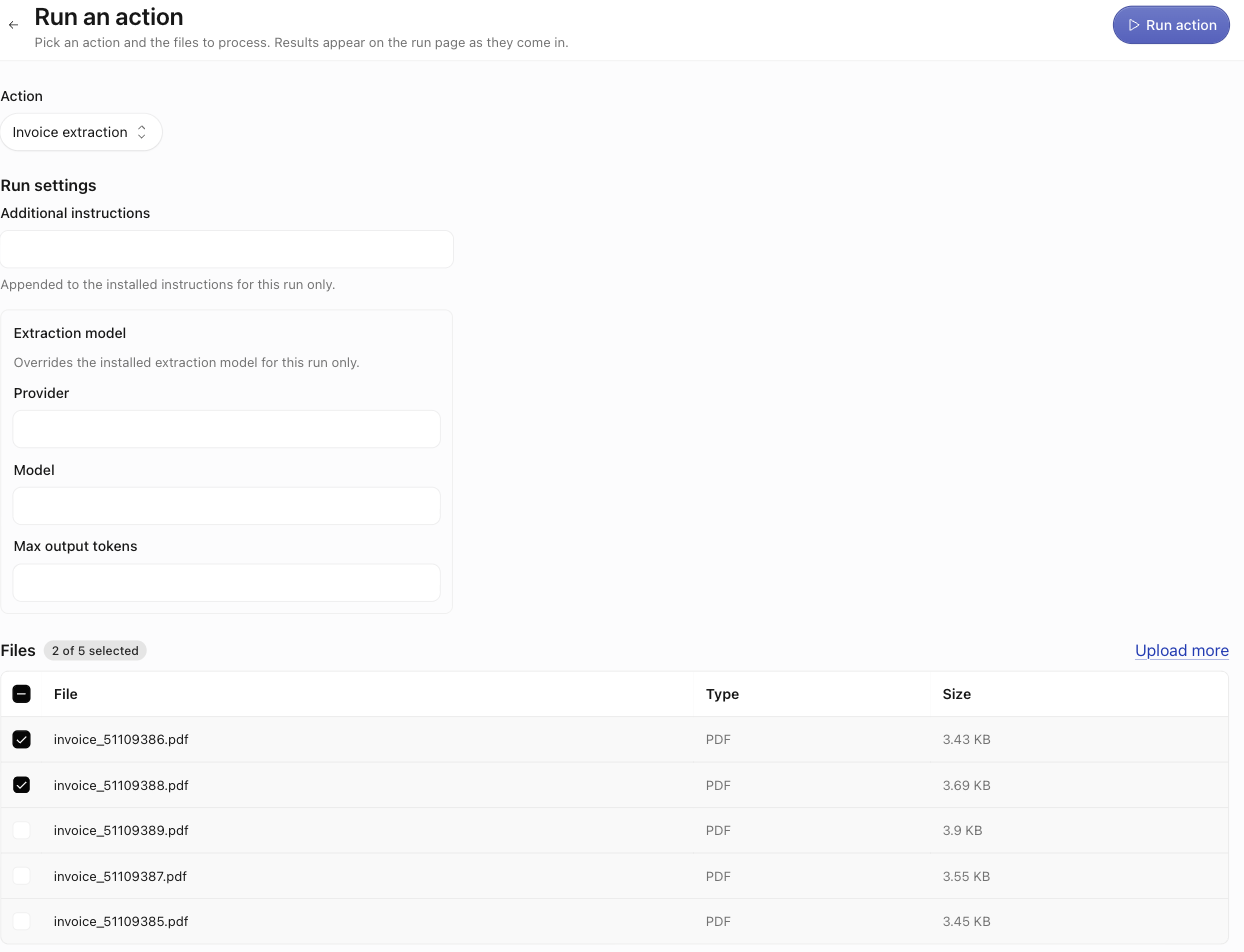
“Run action” opens the launcher, titled “Run an action” (“Pick an action and the files to process. Results appear on the run page as they come in.”).
Pick an action
Use the “Action” select (“Choose an action”). If no action is installed, the launcher points you to “the actions library.”
Fill in run settings
If the action takes per-run settings, a “Run settings” form appears. Fill it in.
The launcher also shows a “Recent runs” list. Use it to return to a run you started earlier.
The run page
The run page (/spaces/$spaceId/runs/$runId) shows the action name and a status badge: “Running”, “Waiting for you”, “Done”, or “Failed”. It also shows the start and finish times and a source-file count. While a run is active, you can “Cancel run” (confirm: “Cancel this run? The run stops and is marked failed. This can’t be undone.”). If the AI assistant dispatched the run from a playbook, a “Triggered by playbook run” link points back to it.
The body of the page changes to fit the action:
For redaction and other file-producing actions, the redacted or generated file appears under “Generated files”. Download it from there.

Bulk runs
To process many files at once, open the space’s Files tab. Select the files and use the bulk toolbar’s “Run action”. This launches a single run over every selected file. The same run page shows one row per file. There is no separate “batch” mode. A bulk run is a run with many source files.
A developer-mode-only disclosure holds the raw output, the list of generated files, and the action version. Its label is “Run details — sources, generated files, raw output.” Turn on developer mode from the profile menu to see it. See Actions and the library.