

What CloudRaker is
CloudRaker is a platform where you and a built-in AI assistant do repetitive, document-heavy office work together. Examples: intake, invoice processing, contract review, vendor onboarding, and claims.
Your work lives in a space. An admin defines a reusable process once as a playbook. The AI assistant runs the playbook and drafts the outputs. It reads documents, fills forms, and drafts records. You always review and approve before anything becomes real data.
Who it’s for
CloudRaker serves business and operations teams that run document-heavy, multi-step processes. You do not need to be technical. If your job is to collect files, pull data out of them, fill forms, and produce documents, CloudRaker is for you.
The one rule that defines CloudRaker
The assistant drafts; you decide what to approve. The AI assistant and automated steps never commit data on their own. They produce drafts: proposed records, filled forms, and generated documents. A person reviews, edits, approves, or rejects before anything becomes committed data.
Every extracted value, every filled form, and every record starts as a draft.
How the pieces fit together
Your organization is your whole workspace. Inside it, work happens in spaces. A space is a workspace that holds files, records, and people for one body of work. Every space is created from a space type, a reusable template that an admin sets up.
Admins also define reusable playbooks (an ordered process the agent can run). Admins install actions (single-purpose capabilities such as extract, fill a form, or sign). When you run a playbook inside a space, you get a run. The agent works through the run’s tasks and produces drafts that you approve.

Keep these relationships straight:
- A space is where work happens. A space type is the template a space is created from. Admins manage space types. You work in spaces.
- A playbook is a blueprint defined once at the org level. A run is one execution of that playbook inside a space. You can run one playbook many times.
- The agent does the drafting inside a run. A person approves before any AI-produced value is committed.
For a one-line definition of every term (space, space type, playbook, run, record, action, grounding), see Key concepts.
Signing in
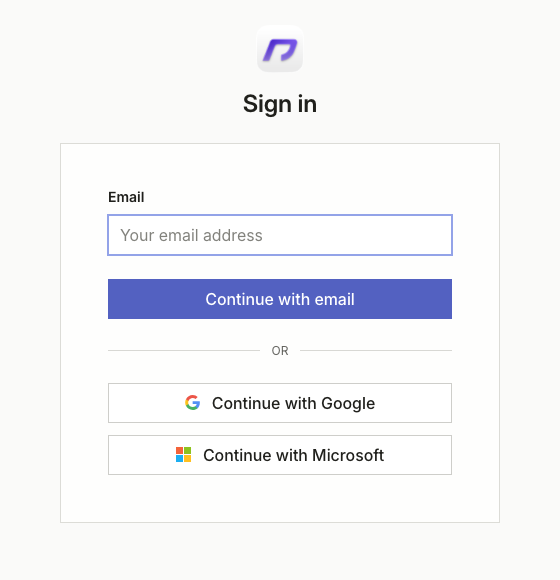
Sign in to CloudRaker at app.cloudraker.com with your work account. Your organization’s identity provider handles sign-in. There is no local CloudRaker password to set or reset. If you visit a page while signed out, the app sends you to sign in. It then returns you to the page you requested.
One organization, one tenant
Everything you see belongs to a single organization: spaces, files, records, and roles. If you are a member of more than one, switch between them from the switcher at the top of the sidebar. Switching re-scopes the entire app to the other organization and reloads it. Nothing carries across.