

Run a playbook
You run a playbook from inside a space. The run page shows what the agent does as it happens: which files it read, which actions it proposed, and where it waits on you. For approving, rejecting, steering, and the run controls, see Approvals and steering.
This is the space Playbooks tab, which starts an agentic run. The space Actions tab is different. It runs a single action over some files with no agent.
Start a run
Open the space's Playbooks tab and click Run playbook
The Run playbook picker opens: “Choose a playbook to configure and run in this space.” Only playbooks compatible with this space’s type appear. If none do, you see “No active playbook supports this space type yet.” Pick one and click Continue.
Review what the playbook will do
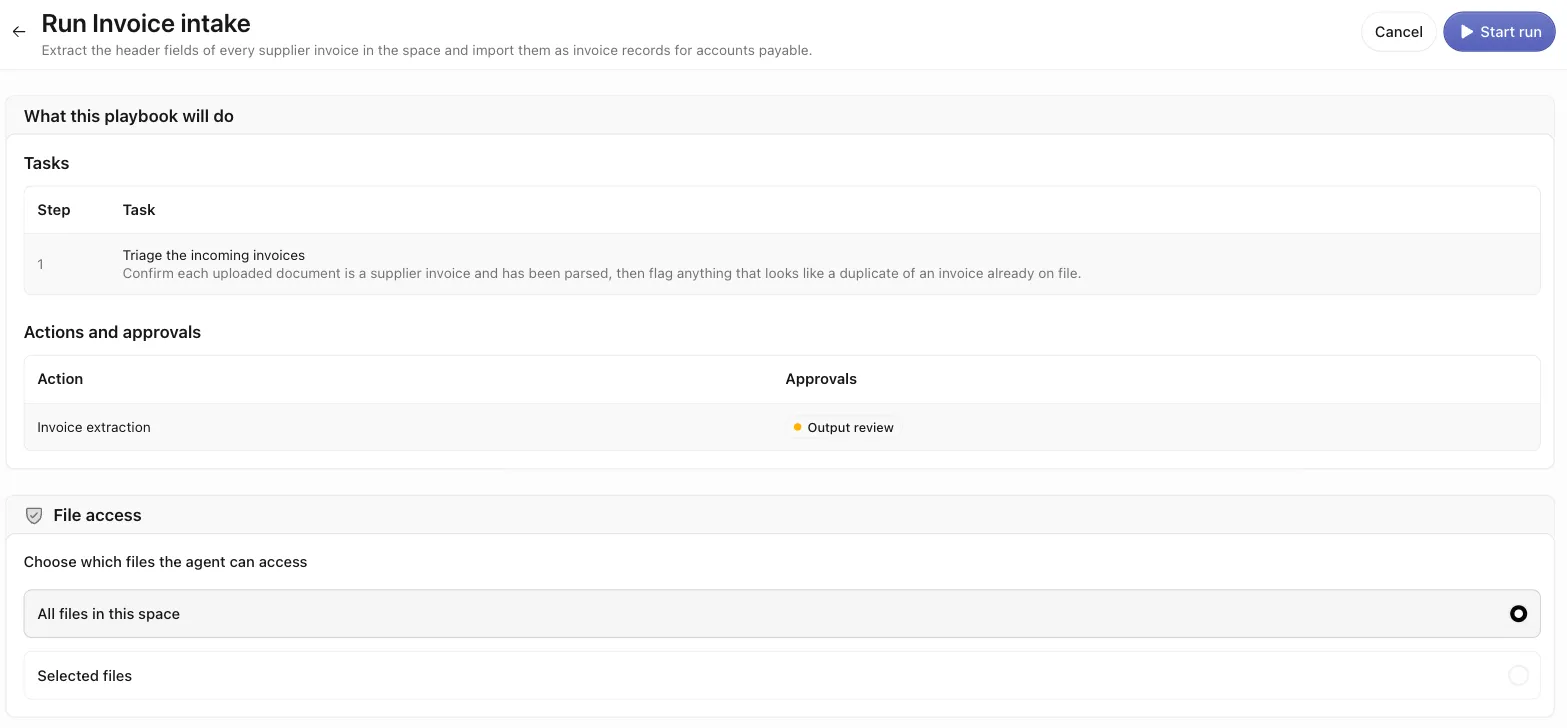
The launcher (Run {playbook name}) previews the run under What this
playbook will do. It shows a Tasks table (Step / Task) and an Actions
and approvals table. Each action carries a badge: Approval before
running, Output review, or No approval gate. The badge tells you
where the run will pause.
The run page
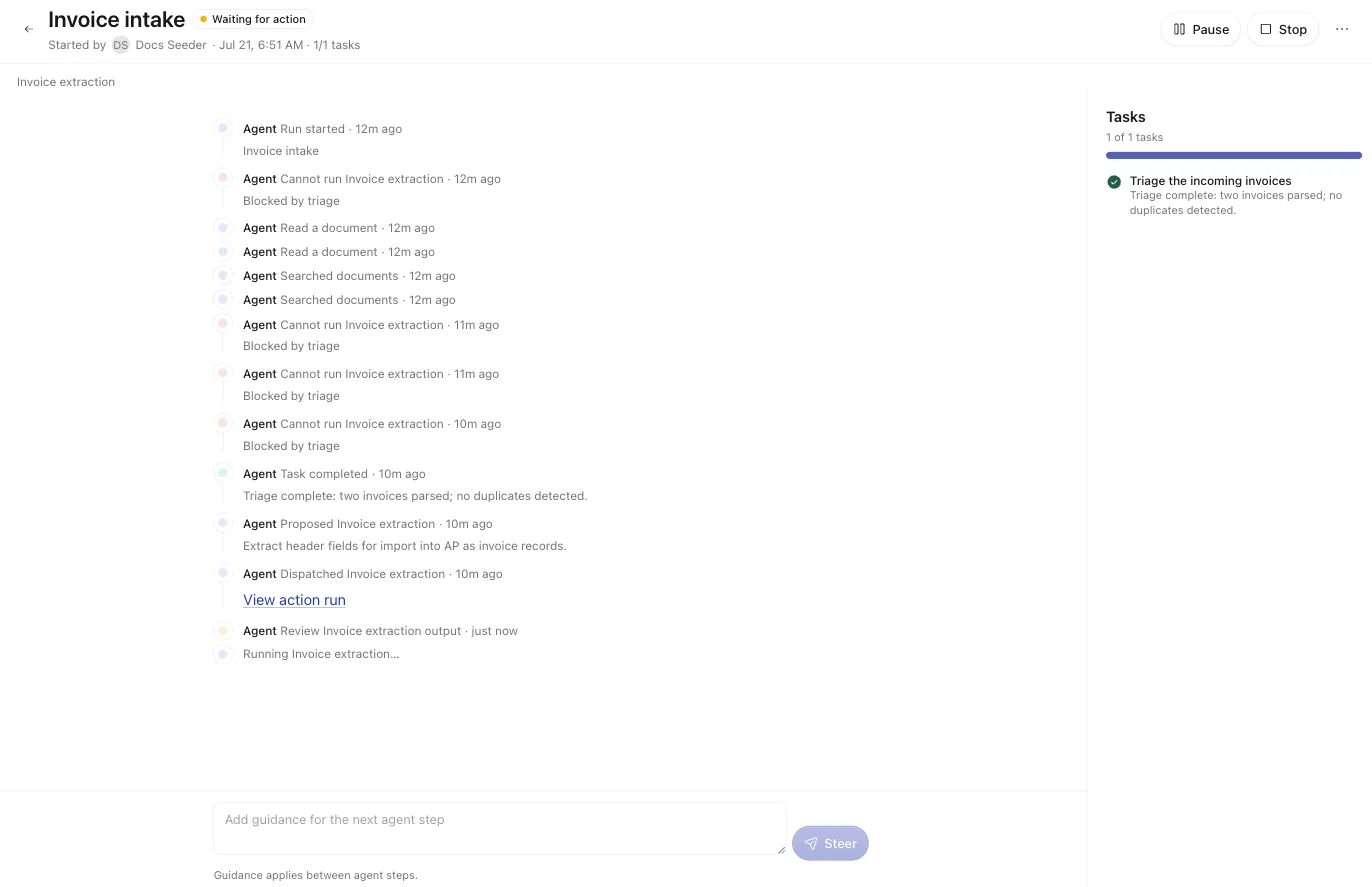
The run detail page (/spaces/$spaceId/playbook-runs/$runId) has four parts:
- Header — the playbook name and a status badge, plus “Started by
{user}·{date}·{completed}/{total}tasks” and a live activity line. For live runs the run controls sit here (see Approvals and steering). - Tasks rail — a Tasks progress meter (“
{n}of{m}tasks”) and each task with an icon: a check for completed, a lock for blocked (“Blocked by …”), and a circle for ready. Each task shows the summary the agent wrote. - Timeline — the live activity feed (below).
- Steering composer — where you add guidance for the agent’s next step. See Approvals and steering.
Statuses
The status badge tells you where the run is:
The first five are live. The page streams updates over a WebSocket. If the connection drops, the page falls back to polling. You may then see a “Live updates are reconnecting” note.
The timeline
Every event names its actor and what happened. The actor is Agent or a person, with their name and avatar. Over a run you will see:
- the run started, completed, failed, or was cancelled;
- the agent reading and searching files, the knowledge graph, and data (for example “Listed files”, “Read a document”, “Searched documents”, “Searched the knowledge graph”, “Queried records”);
- an action proposed, dispatched, completed, failed, or skipped;
- approvals requested and decided, and output reviews requested;
- steering messages you sent;
- pause / resume / stop, and browser-session events.
A dispatched action shows a View action run link into the Actions surface. Use it to open that action’s own run. A line at the bottom shows the agent’s current activity (“Agent is working…” or “Waiting for you…”).
Comments
Collaboration on a run happens in comments on a run task. You can post a comment, @mention teammates, add emoji, and use basic formatting. You can edit or delete your own comments. This is the place to loop someone in on a run. There is no separate global inbox.
Browser-control steps
The agent does not dispatch a user-triggered action, such as a browser-fill step. The action needs your browser. When the run reaches one, a browser action card appears with a Your step badge. The badge becomes Agent filling once the session is live:
Start the browser session
Click Start browser session. The card shows “Waiting for your browser to connect.” Use Open pairing link (or Copy link). Open the link in the Chrome that has the CloudRaker extension installed.
If tasks gate the step, the card shows “Unlocks after: …”. You can Skip this step until the agent is actively filling.
When a run finishes
There is no single output bundle. A run’s results land in their natural homes. Approved extraction records go to the space Data tab. Files that an action generated appear in Files. Each dispatched action has its own action run, reachable from the timeline’s View action run links. A failed run shows a “Run failed” banner with the error.